
How to Configure Security Deposits?
Protect your equipment without an awkward conversation every time. Rentablez lets you set a default deposit rule — like 20% of the rental value — so your team always knows exactly what to collect, and every order applies it consistently.
Navigate to Settings → Financial Settings → Security Deposit Settings to configure.
Which Method Fits Your Business? — Security Deposit Types
Rentablez offers four ways to calculate the deposit. The default is None until you configure it.
None — no deposit applied by default. Your team can still add one manually on individual orders if needed.
Fixed Amount — the same flat fee on every rental, regardless of order value. Useful if you want a standard deposit for all customers (e.g., ₹5,000 every time).
Order Amount % — a percentage of the total rental value. The deposit scales with the size of the order (e.g., 20% of whatever the rental comes to).
Asset Security Value % — a percentage of the equipment’s replacement cost. Useful when you want the deposit to reflect the actual risk of the items being rented.
Set It Once, Apply Everywhere — Configure Your Default
Click the Security Deposit Type dropdown and select the method that fits your business.
If you chose Fixed Amount, enter the rupee amount. If you chose a percentage method, enter the percentage.
Click Save Configuration.
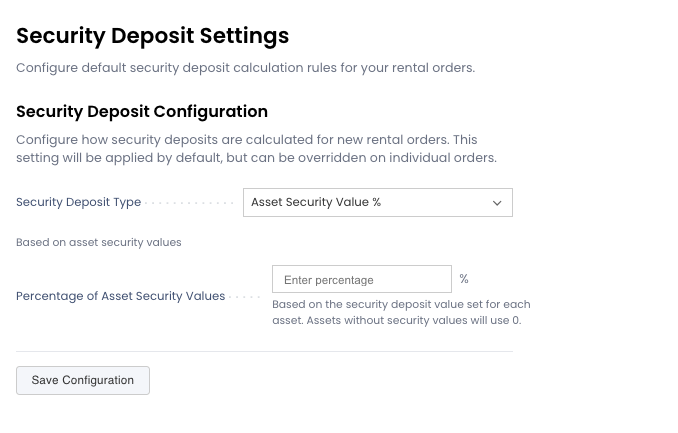
This shows the Asset Security Value % option with a 20% rate configured. Rentablez applies this automatically to every new rental order — your team can still override it on individual orders when a customer’s situation calls for a different amount.
You’re All Set!
Your default deposit rule is saved. Rentablez applies it to every new rental order automatically, so no one on your team has to remember what to charge.