
How to Set Up Payment Modes?
Cash, card, UPI, bank transfer — Rentablez lets you define every way you accept money so your team records payments accurately every time. Once configured, these modes appear as options whenever anyone logs a payment against an invoice or order.
Navigate to Settings → Financial Settings → Payment Modes to manage them.
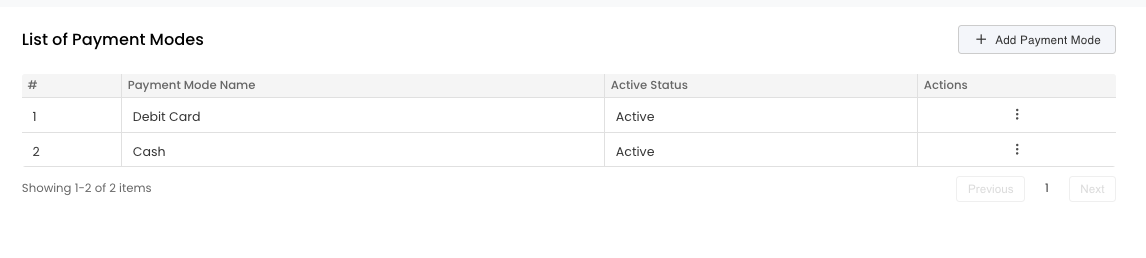
The Payment Modes list shows all your configured methods. Each one can be activated, edited, or marked inactive as your business needs change.
Adding a New Way to Accept Money? — Add a Payment Mode
Click + Add Payment Mode.
Enter the Payment Mode Name — exactly as you want it to appear to your team when recording a payment. For example: Cash, Credit Card, UPI, Bank Transfer, or PayPal.
Click Add.

Enter the name and click Add. The new method appears in your list immediately and is available for your team to select when recording any customer payment in Rentablez.
You’re All Set!
Your payment modes are ready. Rentablez shows these options every time your team records a transaction, keeping payment tracking consistent across your whole business.