
How to Set Up Adjustment Reasons?
Ever found an extra lens in your bag or realized a cable is missing after a shoot? Keeping your inventory numbers accurate is key to avoiding double-bookings. Adjustment Reasons give you a structured way to fix stock counts while tracking why the change happened—whether it’s Lost, Damaged, Found, or Returned from Repair.
This creates a clear audit trail so you always know where your gear went (and who might be responsible).
Why Use Adjustment Reasons?
When you manually add or remove stock, adjustment reasons document why the change happened. This helps you track issues like damaged equipment or found items over time.
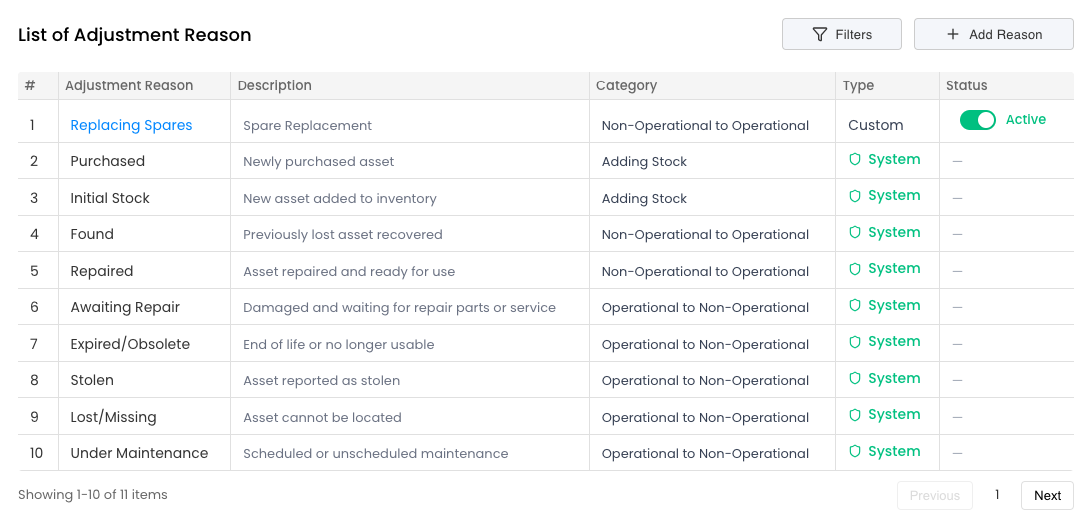
Navigate to Settings → Adjustment Reasons.
Understanding Adjustment Types
Rentablez organizes adjustment reasons into 5 categories:
- General: General-purpose adjustments
- Adding Stock: Reasons for increasing inventory (e.g., “Found”, “Purchased”)
- Removing Stock: Reasons for decreasing inventory (e.g., “Lost”, “Broken”)
- Operational to Non-Operational: Moving items to maintenance/repair
- Non-Operational to Operational: Returning items from maintenance to active inventory
Create an Adjustment Reason
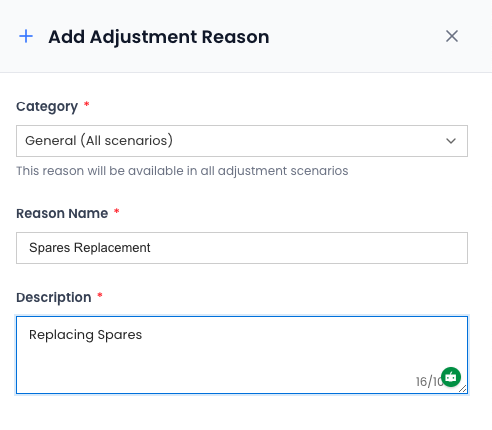
- Click + New Adjustment Reason
- Reason Name: Enter the reason (e.g., “Water Damaged”, “Stolen”)
- Category: Select the appropriate adjustment type from the 5 categories
- Description: Add optional details (e.g., “Items damaged during monsoon”)
- Click Save
Edit an Adjustment Reason
- Find the reason in your list → Click Edit
- Update the name or description → Click Save
Note: System-defined reasons (pre-installed by Rentablez like “Rental Out”) cannot be edited or deleted to protect historical data integrity.
Activate or Deactivate Reasons
Toggle the status to Active (available for use) or Inactive (hidden from selection).
Inactive reasons won’t appear when adjusting stock, but past adjustments using them remain in your records.
Search and Filter
Click Filters to open the filter panel with three powerful options:
Filter Options:
- Category: Filter by adjustment type (General, Adding Stock, Removing Stock, Operational to Non-Operational, Non-Operational to Operational)
- Type: Filter by System (pre-installed by Rentablez, cannot be edited) or Custom (created by your team)
- Status: Filter by Active or Inactive reasons
Why Filter Adjustment Reasons?
Filtering helps you quickly find the right reason without scrolling through a long list:
- By Category: Need to track all stock losses? Filter “Removing Stock” to see reasons like Lost, Damaged, Stolen
- By Type: Quickly distinguish between system reasons and your own custom ones
- By Status: Show only Active reasons when making adjustments, or view Inactive ones for historical reference
- Combined Filters: Use multiple filters together to narrow down results (e.g., Active + Adding Stock)
Filter reasons by status or category to find what you need quickly and maintain accurate inventory records.

Using Adjustment Reasons
When manually adjusting stock levels, select the appropriate reason to document why inventory changed.
This creates an audit trail for compliance, insurance claims, and business analytics.