
How to Manage Tags?
Need a flexible way to highlight items? Rentablez lets you slap a “Black Friday Sale” or “Urgent Repair” tag on any asset to find them instantly, without messing up your permanent categories.
Why Use Tags?
Tags let you group items without rigid categories. Run a Holi promotion? Tag relevant items “Holi Offer” and filter them instantly. Want to highlight new inventory? Use a “New Arrivals” tag.
Navigate to Settings → Inventory Setup → Item Tags.
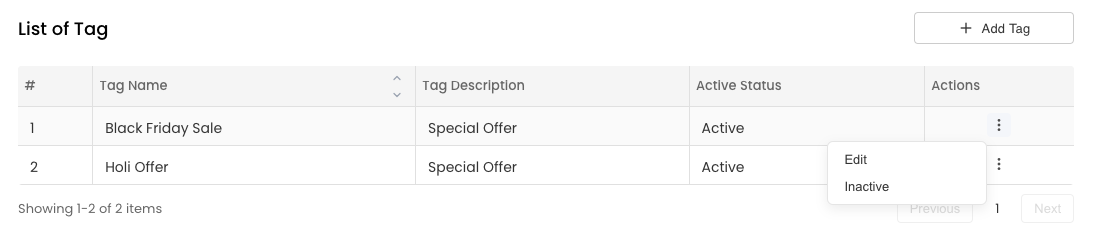
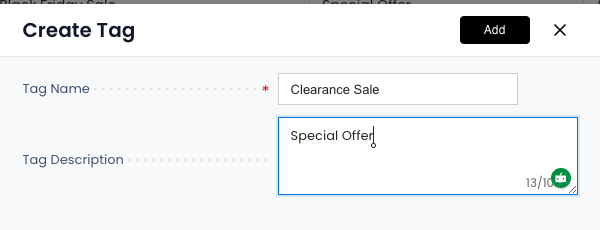
Create a Tag
- Click Add Tag
- Name: Enter the tag label (e.g., “Black Friday”, “Premium Items”)
- Description: Explain the tag’s purpose (optional)
- Status: Set as Active
- Click Save
Edit a Tag
- Find the tag in your list → Click Edit
- Update the name or description → Click Save
Activate or Deactivate Tags
Toggle the status to Active (available for use) or Inactive (hidden from selection).
Inactive tags won’t appear when tagging assets, but existing tagged items keep their associations.
Using Tags
When creating or editing assets, assign up to 3 tags for quick filtering and organization.
Tags appear in search filters, helping you and your customers find themed collections instantly.
Rentablez tags give you the flexibility to organize, promote, and manage your inventory exactly the way your business needs.