
How to Categorize Your Products?
Categories help you organize inventory efficiently for faster browsing and filtering. Group similar equipment together—cameras and lenses under camera equipment, tables and chairs under furniture—making navigation intuitive for everyone using your rental system.
Why Use Categories?
Categories make it easy to browse, filter, and manage your inventory. Instead of scrolling through hundreds of mixed items, group cameras under “Photography Equipment” and tables under “Furniture.”
Navigate to Settings → Inventory Setup → Item Categories.
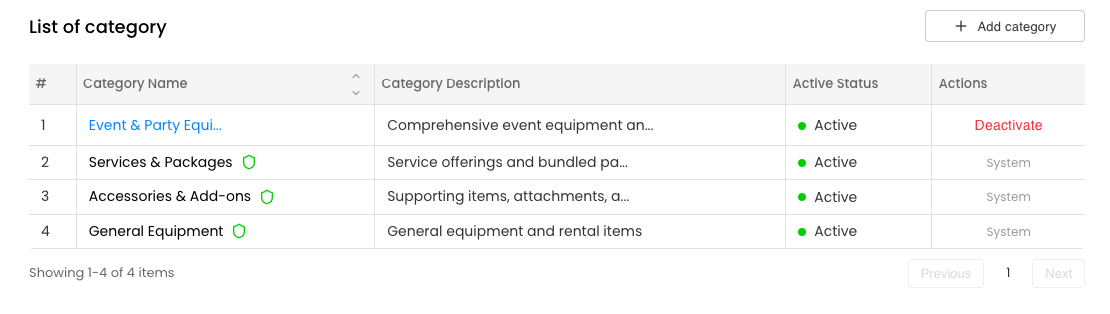
Create a Category
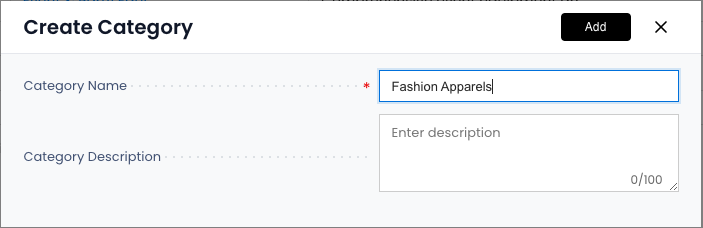
- Click Add category
- Category Name: Enter the name (e.g., “Electronics”, “Party Supplies”)
- Category Description: Add optional details about what belongs in this category
- Click Add
Edit a Category
- Find the category in your list → Click Edit
- Update the name or description → Click Save
Note: Some system-defined categories (pre-installed by Rentablez) cannot be edited or deleted to protect system stability.
Activate or Deactivate Categories
Toggle the status to Active (available for use) or Inactive (hidden from selection).
Inactive categories won’t appear when setting up assets, but existing categorized items keep their associations.
Using Categories
When creating assets, assign them to a category so customers can filter by type.
Categories appear in your webstore and inventory filters, making it easier for customers to find what they need.