
How to Set Up Units of Measurement?
Do you rent by the hour, day, or week? Units of Measurement tell the system how to calculate prices, ensuring that a “1 day” rental isn’t billed as “1 hour” by mistake.
Why Use UOM?
UOM controls how rental durations are calculated and billed. If you rent cameras by the day and tents by the week, each needs its own UOM so pricing is accurate and clear.
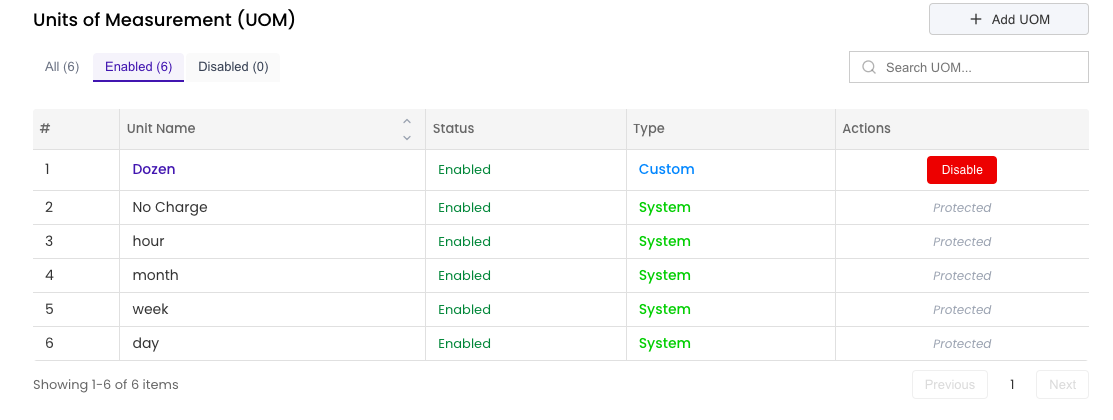
Navigate to Settings → Inventory Setup → Units of Measurement.
Create a UOM
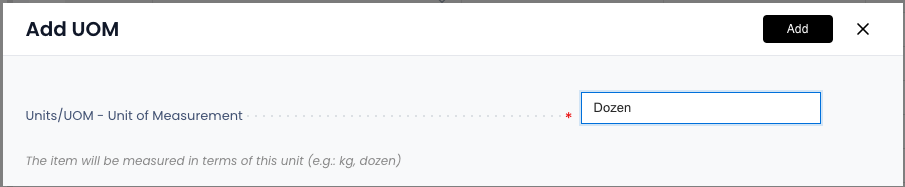
- Click Add UOM
- Short Code: Enter the abbreviation used in calculations (e.g., “Day”, “Hr”, “Wk”)
- Description: Full name or details (e.g., “Daily”, “Hourly”, “Weekly”)
- Status: Set as Active
- Click Save
Edit a UOM
- Find the UOM in your list → Click Edit
- Update the short code or description → Click Save
Note: System-defined UOMs (pre-installed by Rentablez) cannot be edited or deleted to maintain billing consistency.
Enable or Disable UOM
Toggle the status to Enabled (available for use) or Disabled (hidden from selection).
Disabled UOMs won’t appear when setting up pricing, but historical data remains intact.
Search and Filter
- Search: Type UOM name to find it quickly
- Filter: Click Filter → Select All, Enabled, or Disabled
Using UOM
When setting up asset pricing, select the appropriate UOM—this determines how rental fees are calculated for each booking.