
How to Create an Asset?
Go to Assets → Items List and click Create Item in the top right to add a new asset to your inventory.
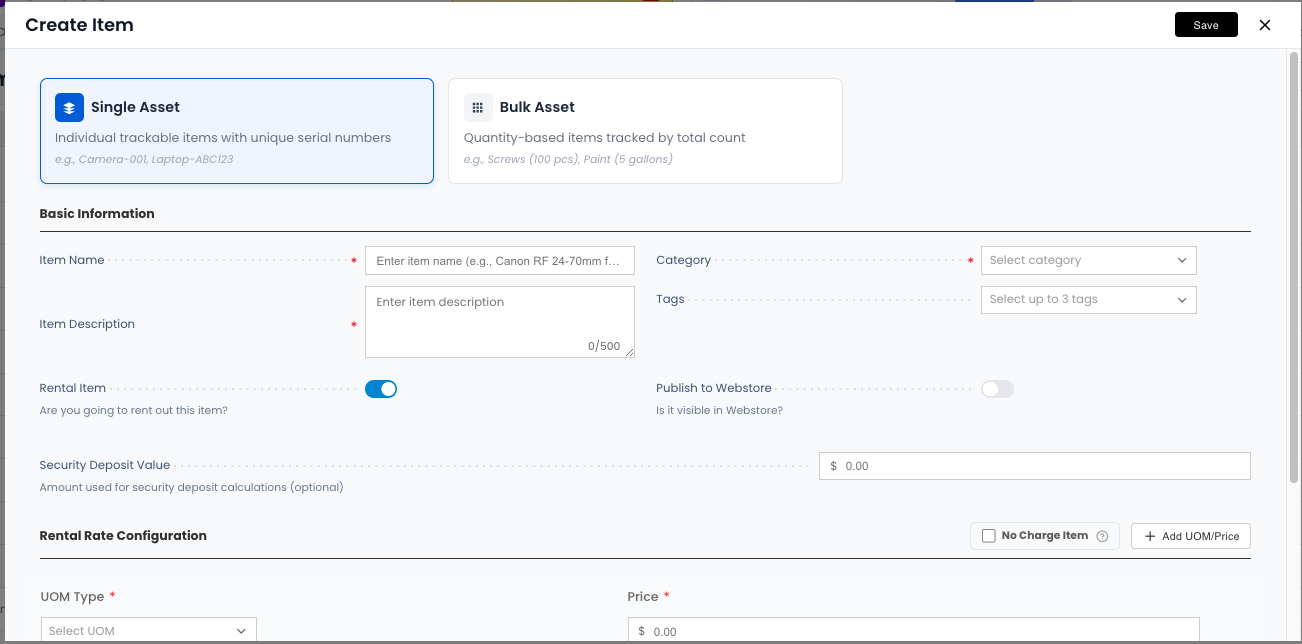
How It Works
Fill in the asset type, basic details, rental settings, and pricing. Rentablez creates the item and adds it to your Items List. From there you can add individual stock units, configure variants, and upload images before the item goes live for bookings.
Individually Tracked or Counted in Bulk? — Choose Asset Type
Single Asset is for items you track unit by unit — cameras, laptops, projectors, vehicles. Each unit gets its own asset tag and rental history. Choose this when you need to know exactly which specific unit is with which customer.
Bulk Asset is for items where quantity is what matters — HDMI cables, batteries, accessories. Rentablez tracks how many are available and how many are out, without individual serial numbers. Choose this when “how many” is more important than “which one.”
What Is It Called? — Basic Information
Enter the Item Name — something descriptive like Canon RF 24-70mm Lens or Folding Chair. Add an Item Description to capture key specs or notes (up to 500 characters). Select a Category to group it with similar items, and add up to three Tags if you want to label it for quick filtering — for example, High Value or Fragile.
Can Customers Rent It? — Rental Settings
Rental Item controls whether this item is available for rental orders. Turn it on for anything you rent out, or leave it off for internal-use-only equipment.
Publish to Webstore makes the item visible on your online store so customers can browse and enquire on their own.
Security Deposit Value lets you set a deposit amount customers must pay before taking this item — useful for high-value or fragile equipment.
How Much Does It Cost? — Rental Rate
Set the UOM Type — the billing unit for this item (Day, Week, Month, or Hour). Then enter the Price per unit. For example, ₹500/day or ₹2,000/week.
Tick No Charge Item if this item is included free — no rental fee will be calculated for it.
For more complex pricing — volume discounts, tiered rates, or variant-level pricing — see Set Pricing for Variants and How to Set Up Flexible Pricing Tiers?.
Need Size or Colour Options? — Options
If the item comes in multiple configurations, click + Add Option to define variant attributes before saving. Enter an Option Name (e.g., Size) and its Values (e.g., Small, Medium, Large). See How to Create Variant Options? for the full workflow.
You’re All Set!
Click Save. Rentablez creates the item and adds it to your Items List. Next, open the item and go to the Items tab to add individual stock units, or the Pricing tab to configure detailed rental rates.