
How to Create Variant Options?
Rentablez variants let you offer the same asset in different configurations—like laptops with different processors or power strips with different socket counts—so customers can choose exactly what they need. After creating variants, you can set variant-specific pricing and add stock for each variant.
Creating Variant Options
During Asset Creation
- When creating a new asset, scroll to the Options (Optional) section.
- Click + Add Option
- The Create New Option dialog opens.
Fill in the details:
- Option Name: What makes them different? (maximum 20 characters)
- Examples: Size, Color, Processor, Sockets, Model, Lumens
- Values: The actual choices customers can pick
- Examples: Small, Medium, Large OR i5, i7, i9 OR 4, 6, 8
- Click + Add More to add additional values
Note: The Preview section shows how customers will see this option when ordering.
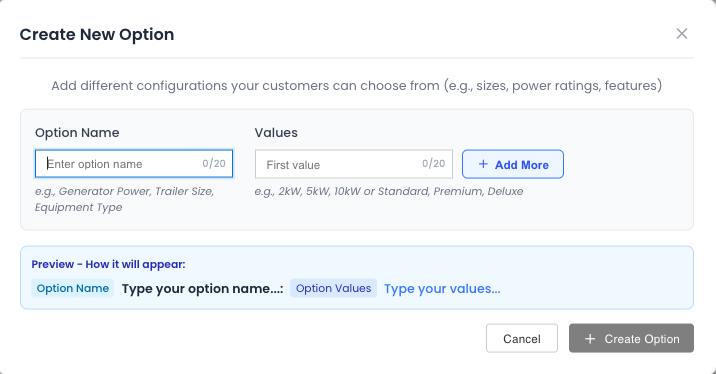
The Create New Option dialog lets you define variant characteristics like Size, Color, or Processor. Add the option name and all possible values customers can choose from. The preview shows how this will display during ordering.
Click Create Option and continue creating your asset, then click Save.
Adding Options After Asset Creation
If you didn’t add options during creation, you can add them later.
Open Your Asset
- Go to Inventory → Select Asset (e.g., Power Strip or Dell Laptop)
- You’ll see three tabs: Items, Variants & Options, Pricing
- Click Variants & Options tab
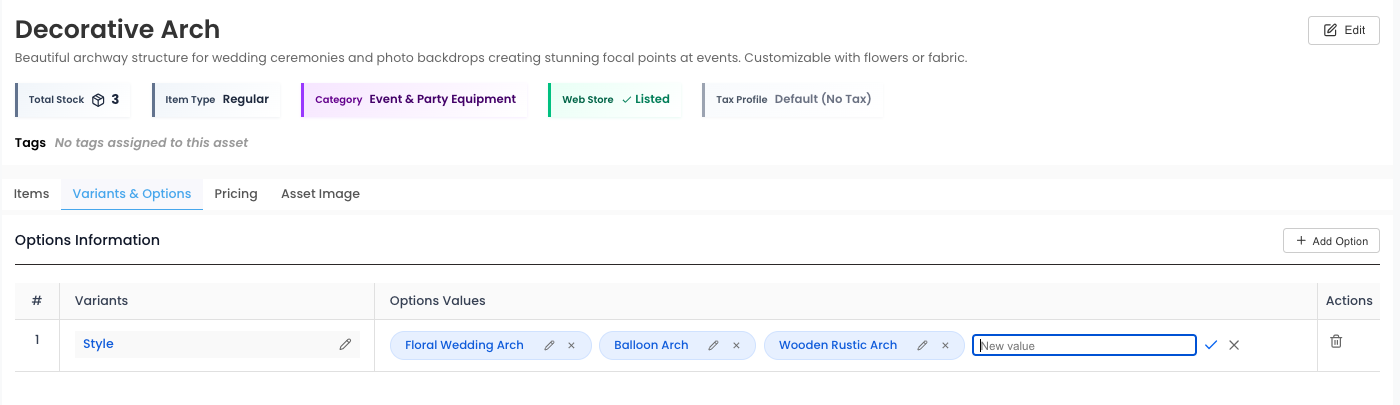
Create Your Option
- Under Options Information, click + Add Option
- The Create New Option dialog opens.
Fill in the details:
- Option Name: What makes them different?
- Examples: Size, Color, Processor, Sockets, Model
- Values: The actual choices customers can pick
- Examples: Small, Medium, Large OR i5, i7, i9 OR 4, 6
- Click + Add More to add additional values
Note: The Preview section shows how customers will see this option when ordering.
Click Create Option.
Your Option is Ready
The option now appears under Options Information with all its values.
You can add multiple options to the same asset (e.g., Size AND Color).
Popular Variant Examples
- Laptops: Processor (i5 / i7 / i9)
- Tents: Size (Small / Medium / Large)
- Power Strips: Sockets (4 / 6 / 8)
- Projectors: Lumens (1000 / 3000 / 5000)
- Cameras: Model (Basic / Pro / Premium)
- Tables: Shape (Round / Rectangle / Square)
When to use variants? When the same asset type has different specifications that customers need to choose from.
That’s It!
You’ve created variant options for your asset. Next, set pricing for each variant and add stock items so customers can order specific configurations.
Your Rentablez catalog now offers flexible configurations—customers see exactly what’s available and can pick the right variant for their needs.