
How to Add Stock with Variants?
Once you’ve created variant options in Rentablez, add inventory items and assign specific variants to each—this lets customers order exact configurations and helps you track stock separately.
Adding Stock with Variants
Navigate to Items Tab
- Go to Inventory → Select Asset (with variants already set up)
- Click Items tab
Add Stock Item
- Click Add Stocks button
- The Add Stock Item dialog opens.
Configure Your Stock
- Quantity: Enter number of items to add (e.g., 100)
- Select Variant: Choose from dropdown
- Example: “Select Processors” → pick i5, i7, or i9
- Example: “Select Sockets” → pick 4 or 6
- Note: Leave empty for default variant (no specific configuration)
Current Pricing displays automatically:
- UOM: day | Base Price: ₹2000 | Stock: 2
- UOM: week | Base Price: ₹12000 | Stock: 2
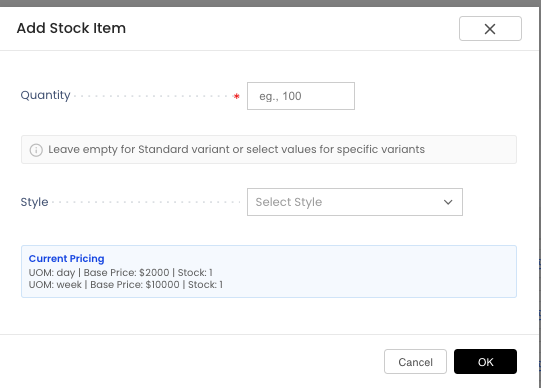
The Add Stock Item dialog lets you add inventory quantity and assign specific variant values. Select the variant configuration (like Processor: i7 or Socket: 6) to create separate inventory items. Current pricing for each time period displays automatically.
Click OK to add the stock.
Result: Separate Inventory Items
Each variant becomes a separate inventory item:
RENT-DELL_XPS_15-0003(Processor: i7)RENT-DELL_XPS_15-0002(Processor: i7)RENT-DELL_XPS_15-0001(Processor: i7)
Each variant has:
- Unique SKU for tracking
- Separate stock count
- Individual pricing
- Own images and actions
Why This Matters
For Customers:
Order specific configurations (Dell Laptop with i7, not just “Dell Laptop”)
For Your Business:
- Track stock separately (5 units of i5, 3 units of i7)
- Schedule maintenance for specific variants
- Set different pricing per variant
That’s It!
Customers can now order specific configurations, and you can manage each variant as a separate inventory item. Start adding stock with variants to give customers more choices!
Rentablez now tracks each variant independently, giving you precise control over your inventory.