
How to Configure Date & Time?
Set your organization’s timezone, date format, and time format to ensure accurate rental calculations and clear communication with customers. Proper configuration prevents common issues like rental duration miscalculations, confusing date formats on invoices, and timestamp mismatches across different regions.
Why Configure Date & Time?
Correct date and time settings ensure:
- Invoices show dates in your customers’ expected format
- Reports reflect your actual business hours
- Rental periods are calculated accurately
- No confusion between regions with different date formats
How to Configure
Navigate to Settings > Organization Settings > Date & Time.
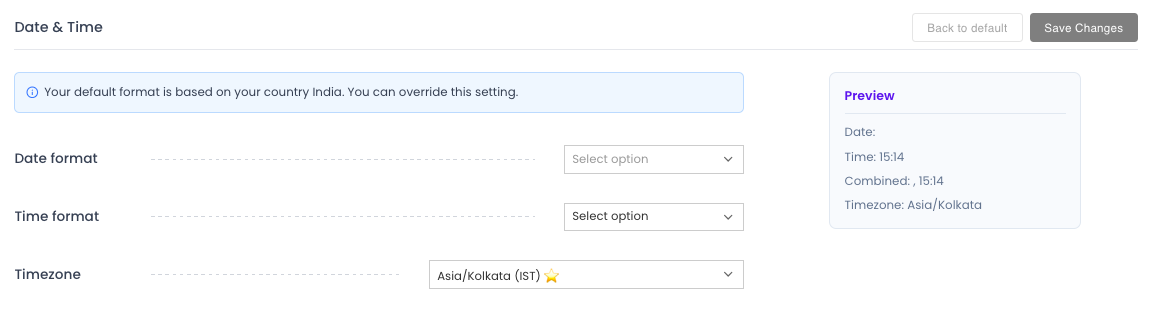
The Preview section updates in real-time to show exactly how your chosen date and time formats will look on your documents. Defining these settings early ensures that all your future bookings, invoices, and reports align with your local business practices.
Select Date Format
Choose from available formats:
| Format | Example | Common In |
|---|---|---|
| DD/MM/YYYY | 25/12/2026 | UK, India, Australia, Europe |
| MM/DD/YYYY | 12/25/2026 | United States |
| YYYY-MM-DD | 2026-12-25 | ISO 8601 international standard |
Steps:
- Click the date format dropdown.
- Preview how each format displays.
- Select your preferred format.
- Click Save.
Select Time Format
Choose how time is displayed on your documents:
| Format | Example | Description |
|---|---|---|
| 12 Hour | 02:30 PM | Standard format with AM/PM indicators |
| 24 Hour | 14:30 | 24-hour clock format |
Steps:
- Locate the Time Format option.
- Select 12 Hour or 24 Hour based on your preference.
- Click Save.
Select Time Zone
Your timezone ensures all timestamps reflect your actual business hours, not server time or customer location.
Steps:
- Locate the Time Zone dropdown.
- Search or scroll to find your city/region.
- Select your timezone (e.g., “Asia/Kolkata”, “America/New_York”, or “Europe/London”).
- Click Save.
Best Practices
- Match your region: Use the date format your customers expect.
- Set timezone correctly: Incorrect timezone affects rental duration calculations.
- Review after updates: If your business moves, update the timezone accordingly.