
How to Create an Enquiry?
Rentablez enquiries let you capture and manage customer requests before they become confirmed orders. For example, when a customer calls asking for camera equipment for a weekend shoot, you can quickly create an enquiry, add the requested cameras and accessories, check availability for their dates, and save it while they finalize their budget — all within minutes.
Customer Called In? — Open a New Enquiry
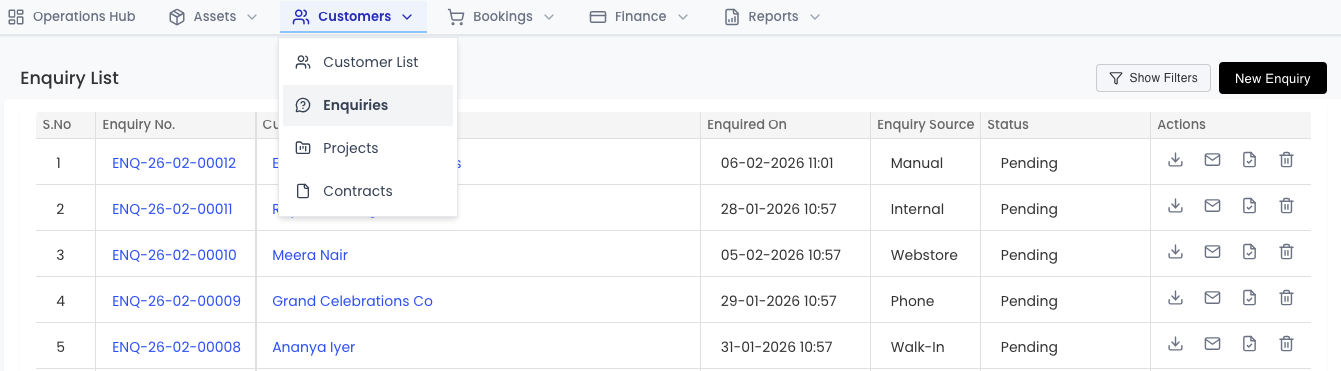
Go to Enquiries in the main menu and click Create Enquiry to begin.
When Do They Need It? — Set Rental Dates
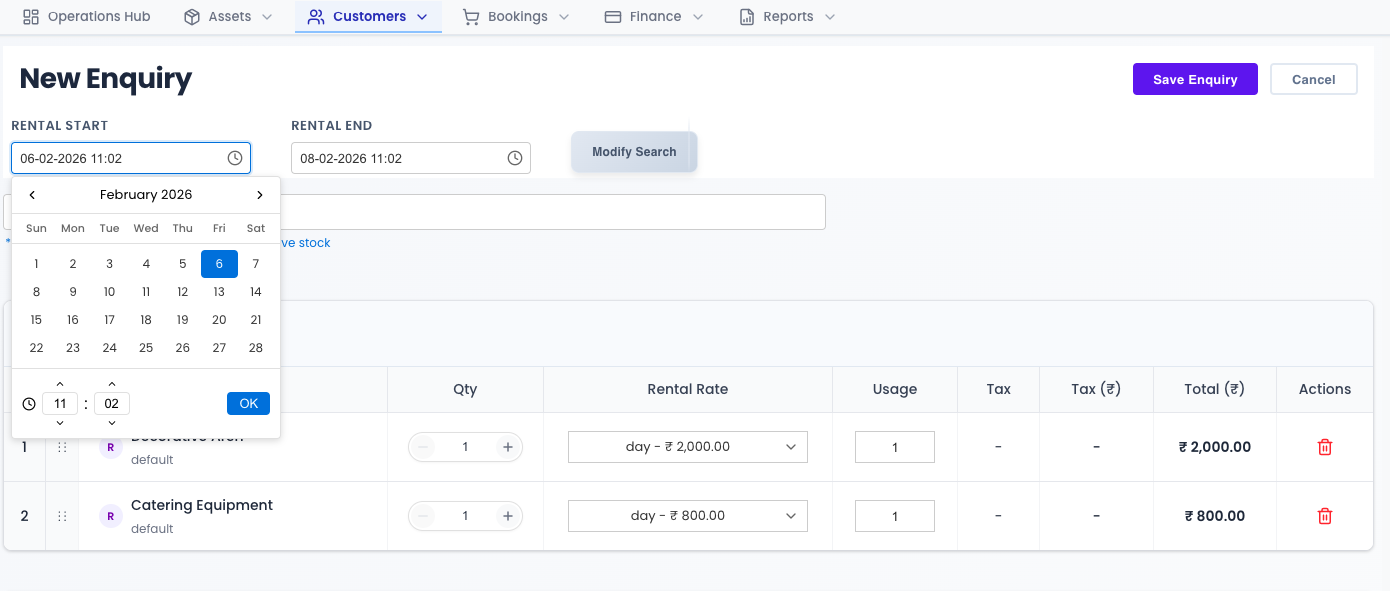
Choose the Start Date and End Date for the requested rental period. Rentablez validates dates automatically to prevent scheduling conflicts.
What Are They Asking For? — Add Equipment
Search and add items to the enquiry based on what the customer needs.
Regular Assets — individual serialized items like cameras or laptops. See Creating Assets.
Bulk Assets — quantity-based items like cables or batteries. See Managing Bulk Assets.
Kits — pre-configured equipment packages. See Creating Kits.
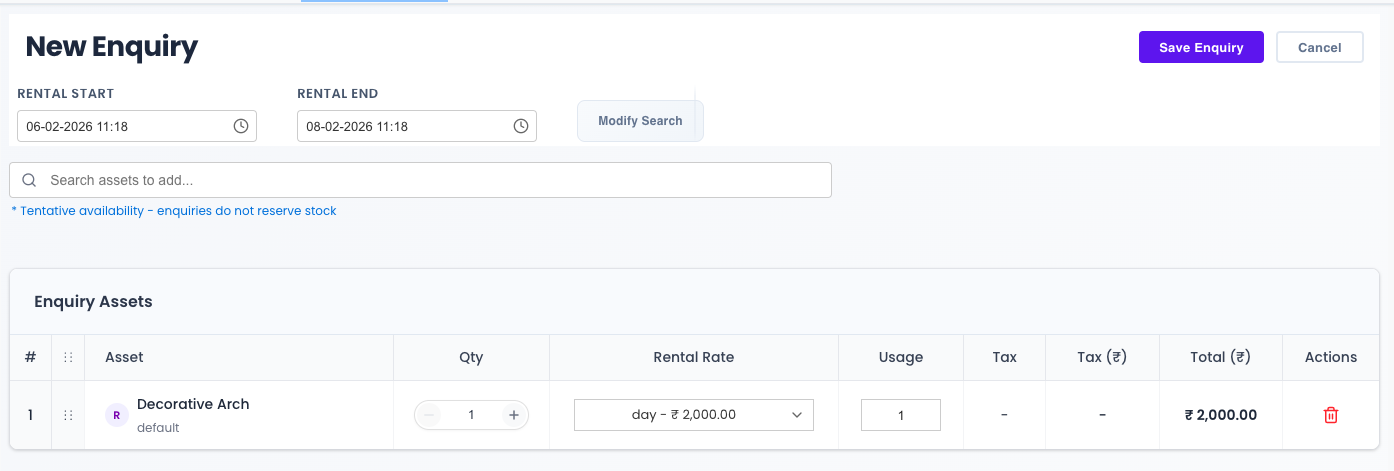
Rentablez shows real-time availability for your selected dates. You can add items to the enquiry even if they’re currently unavailable — they may be returned by other customers before the rental period begins, or added to inventory later.
Any Special Instructions? — Add Notes
Include delivery instructions, special requests, or any other details in the notes field. These carry over automatically if the enquiry is converted to an order.
Working Out the Price? — Financial Details
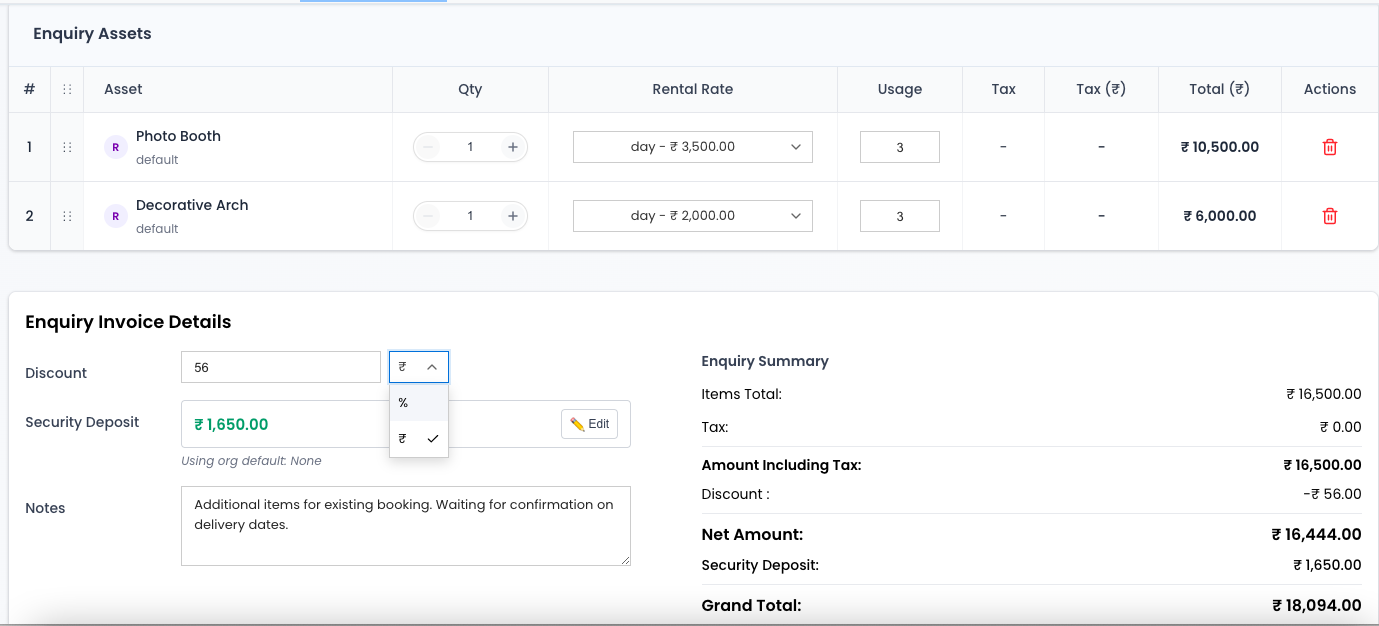
Apply a Discount — choose a fixed amount off the total or a percentage of the rental value.
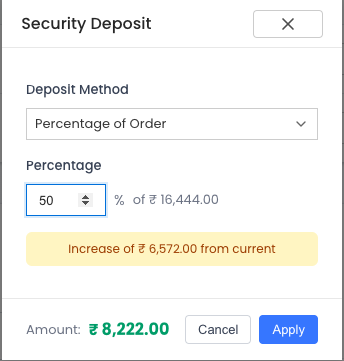
Set a Security Deposit — let Rentablez calculate it automatically based on your settings, enter a custom amount, or apply a custom percentage of the rental total.
Taxes — applied automatically based on your tax configuration and the customer’s location. No manual calculation needed.
Who Is It For? — Save and Link a Customer
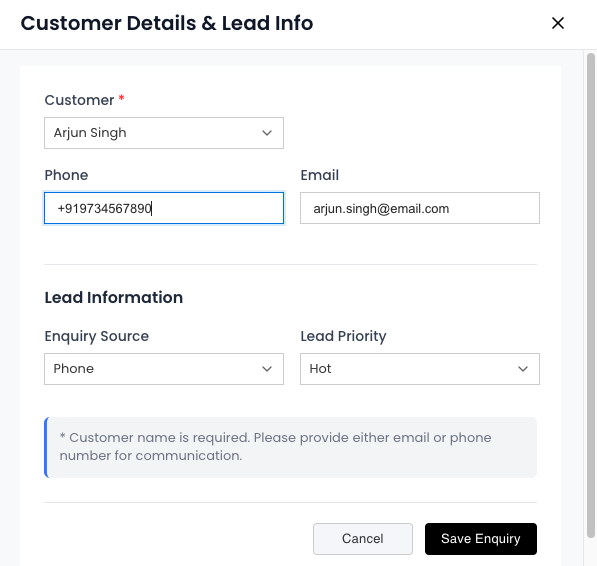
Click Save. Rentablez then asks you to link a customer.
Search for an existing customer by name or phone number — their saved profile and rental history load automatically.
If they’re new, create a new customer on the spot by entering their name and mobile number. You can complete their full profile later from the Customers page.
You’re All Set!
The enquiry is saved and linked. Once the customer confirms their equipment list, proceed to How to Generate a Quote? to send pricing and terms. Rentablez keeps every enquiry organized so nothing falls through the cracks.